Payout
Payouts: Withdrawing Your Balance
Here is the step-by-step guide for withdrawing your available balance from your Qxel seller dashboard.
Step 1: Setup UPI & Verify Your Number
Before you can withdraw funds, you need to add your UPI ID and verify your mobile number in your account settings.
Head to Settings: https://dash.qxel.app/settings/
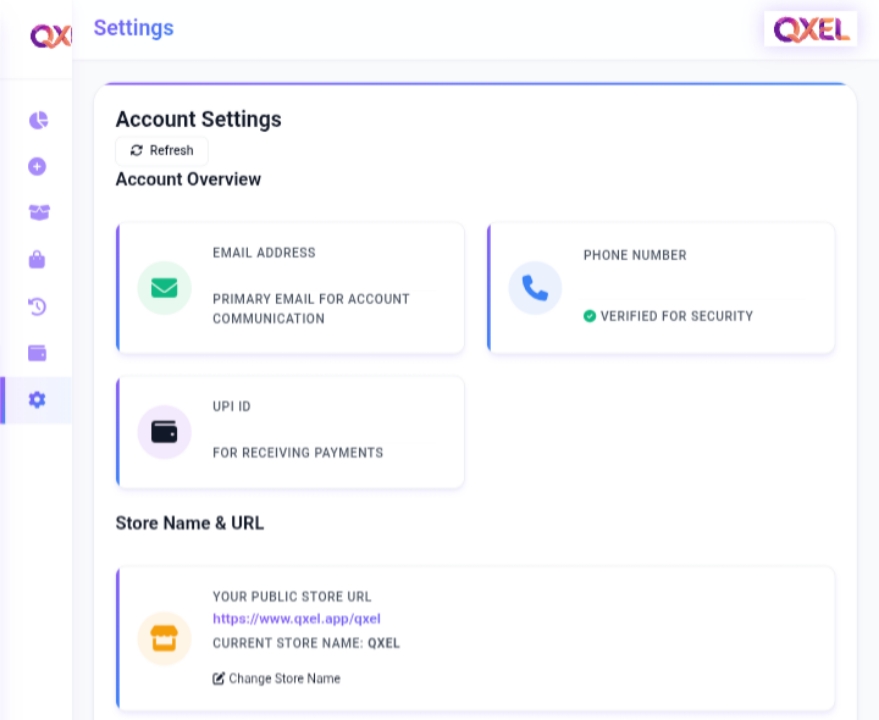
If your Number or UPI hasn't been added yet, you will see an option to enter your mobile number and UPI ID.

You will receive a One-Time Password (OTP) via WhatsApp for number verification. Enter the OTP to complete the verification process.
Step 2: Go to Your Wallet
Once your UPI and number are verified, navigate to your Wallet in the Dashboard:
Here you can see your Available Balance.
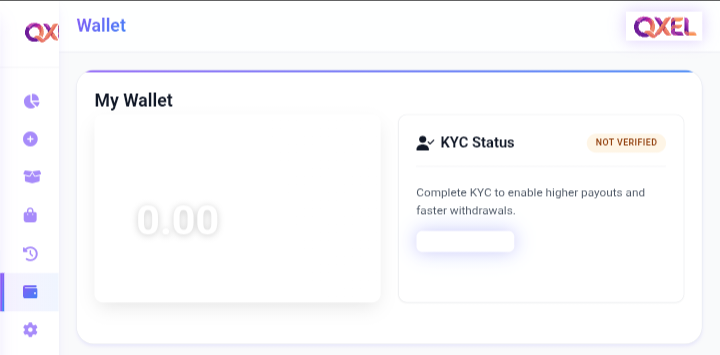
Step 3: Withdraw Funds
If you have a positive balance, you will see a Withdraw option.
- Enter the amount you wish to withdraw.
- Click submit. The amount will be sent to your registered UPI ID shortly after the request is processed.
Note: If your balance is empty or zero, the Withdrawal option will not appear.
Step 4: Using a Different UPI (Optional)
You are not strictly limited to your saved UPI ID. At the time of withdrawal, you can enter a different UPI ID to receive the money to an alternative account.
Need help? Contact support at support@qxel.app