Studymaterials To Micro
Here is the step-by-step guide for converting your study materials into a MicroPDF using Qxel.
Step 1: Open the Tool
Navigate to the study materials to MicroPDF converter:
https://www.qxel.app/tools/studymaterials-to-micro
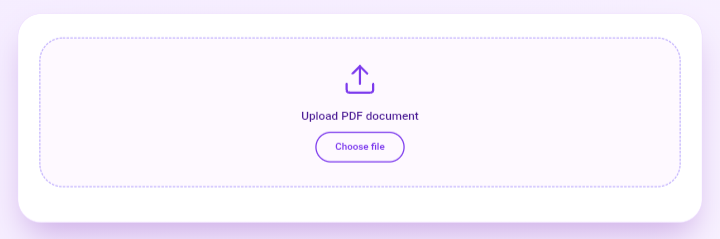
Step 2: Select Your PDF File
Only PDF files are supported, as these are the ones we convert into the micro version.
Step 3: Crop the PDF (Optional but Recommended)
After uploading, a section will appear asking if you need to crop the PDF.

Most PDFs have borders, which significantly affect the final size when converted into MicroPDF. You can crop the borders and unnecessary parts for better output.
Step 4: Choose Pages Per Sheet
You will then be asked how many pages per sheet you want.
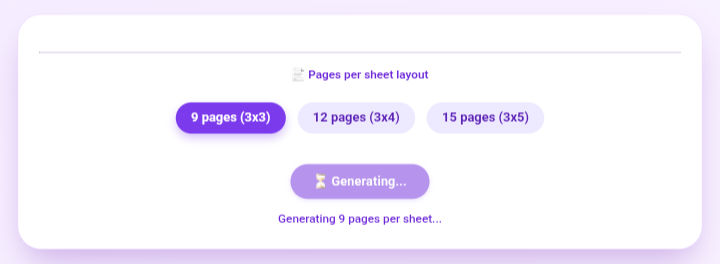
We recommend using the most common default settings for optimal results.
Step 5: Generate & Download
After clicking Generate, the PDF will be processed and made available for download. Simply click the download button to save your MicroPDF.

Need help? Contact support at [email protected]